How to Download ChatGPT to PDF in 2026: Step-by-Step Guide
Updated: April 18, 2026 · By the ChatGPT Exporter team
TL;DR
- Fastest way: Install the ChatGPT Exporter Chrome extension, click Export, pick PDF. Under 60 seconds.
- No install? Press
Cmd/Ctrl + Pand choose Save as PDF. Works anywhere, but it captures the page as-is — you’ll get the sidebar, long code blocks get truncated, and web search sources / Deep Research citations don’t make it in. - Which one for you? Jump to the comparison table below.
If you just want to save a single ChatGPT conversation as PDF right now, skip to Method 1. If you need to archive every chat you’ve ever had, that’s a different workflow — see our bulk export guide.
This guide is for anyone — students, researchers, developers, writers — who wants a clean PDF copy of a ChatGPT chat without spending half an hour copying and pasting.
Method 1 — Export ChatGPT to PDF with ChatGPT Exporter (Recommended)
Why this is the fastest way
We shipped the first version of ChatGPT Exporter in March 2023, back when the only way to save a conversation was screenshotting it. The extension has been refined over many updates based directly on what users asked for — preserving code blocks, rendering LaTeX, supporting Canvas diagrams, embedding Deep Research citations, and keeping long chats readable across pages.
The short version: the browser’s built-in print dialog treats ChatGPT like any other webpage. That means two things go wrong at once — UI you don’t want gets in (the sidebar, action buttons, the input box), and content you do want gets lost (long code blocks are truncated, collapsed replies stay hidden, Web Search sources and Deep Research citations are silently dropped). The extension understands the chat structure, so it strips the UI, captures everything, and produces a clean document instead of a messy webpage snapshot.
Step-by-step
-
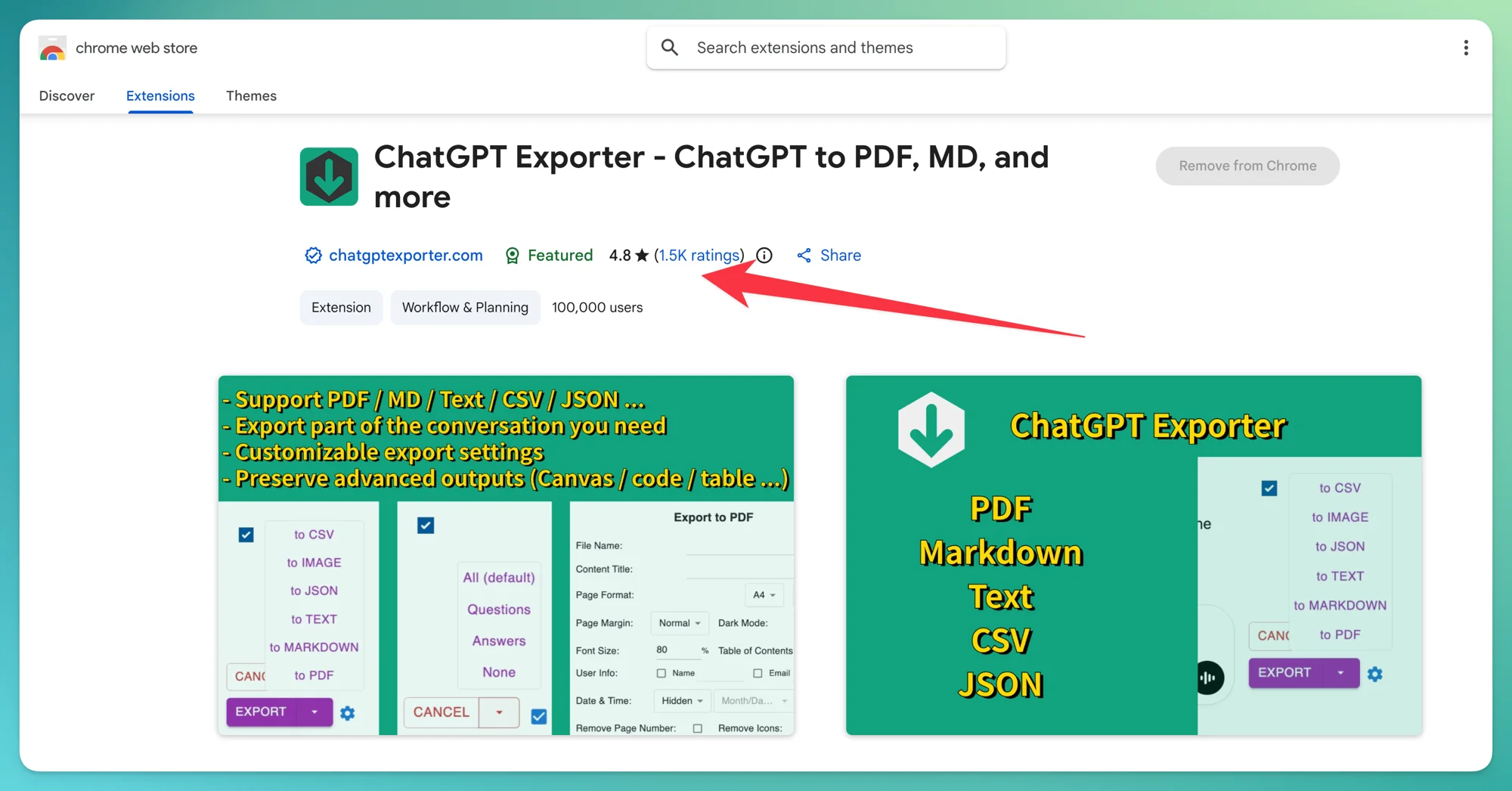
Install the extension from the Chrome Web Store. It’s lightweight (a few hundred KB) — currently rated 4.8/5 (1.5K ratings) with 100,000+ users.
-
Open your ChatGPT conversation at chat.openai.com. The extension activates automatically — no login needed.
-
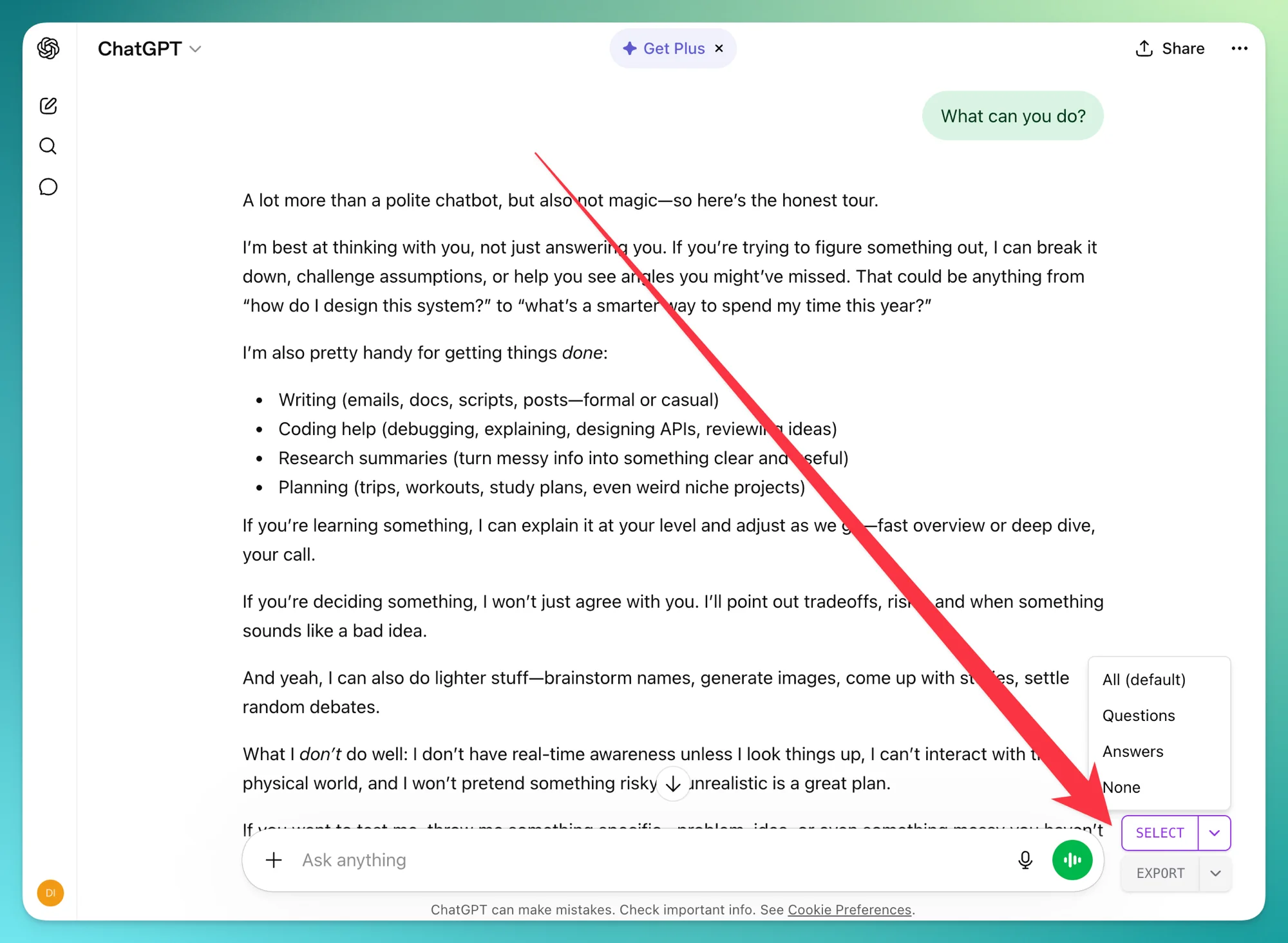
Click the SELECT button at the bottom of the ChatGPT page. A quick-pick menu appears — choose All (default), Questions, Answers, or None. Whatever you pick becomes your default for next time.
-
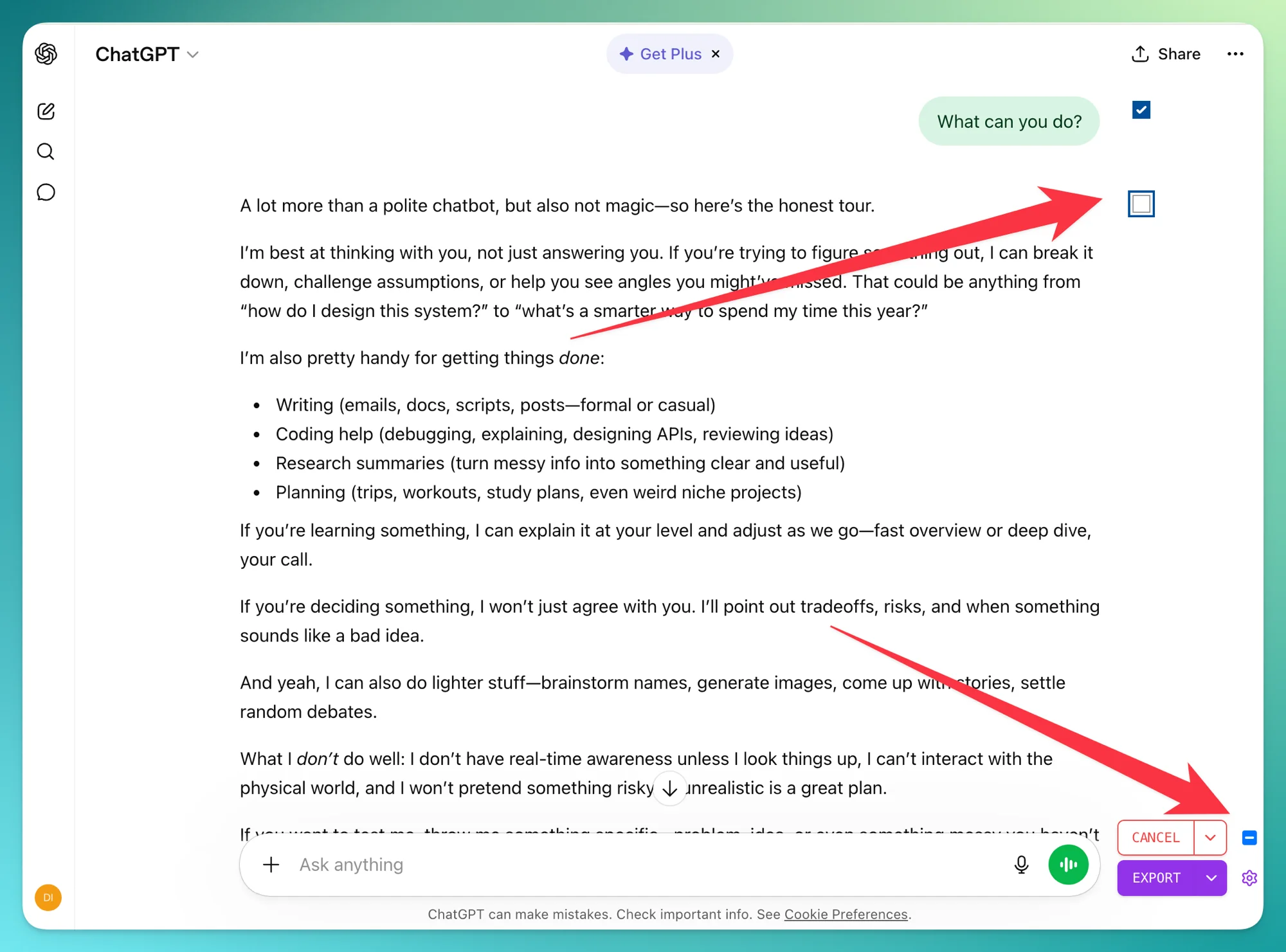
Fine-tune the selection (optional). After hitting SELECT, each message shows a checkbox and there’s a main checkbox at the top to toggle everything at once. Uncheck anything you don’t want in the PDF.
-
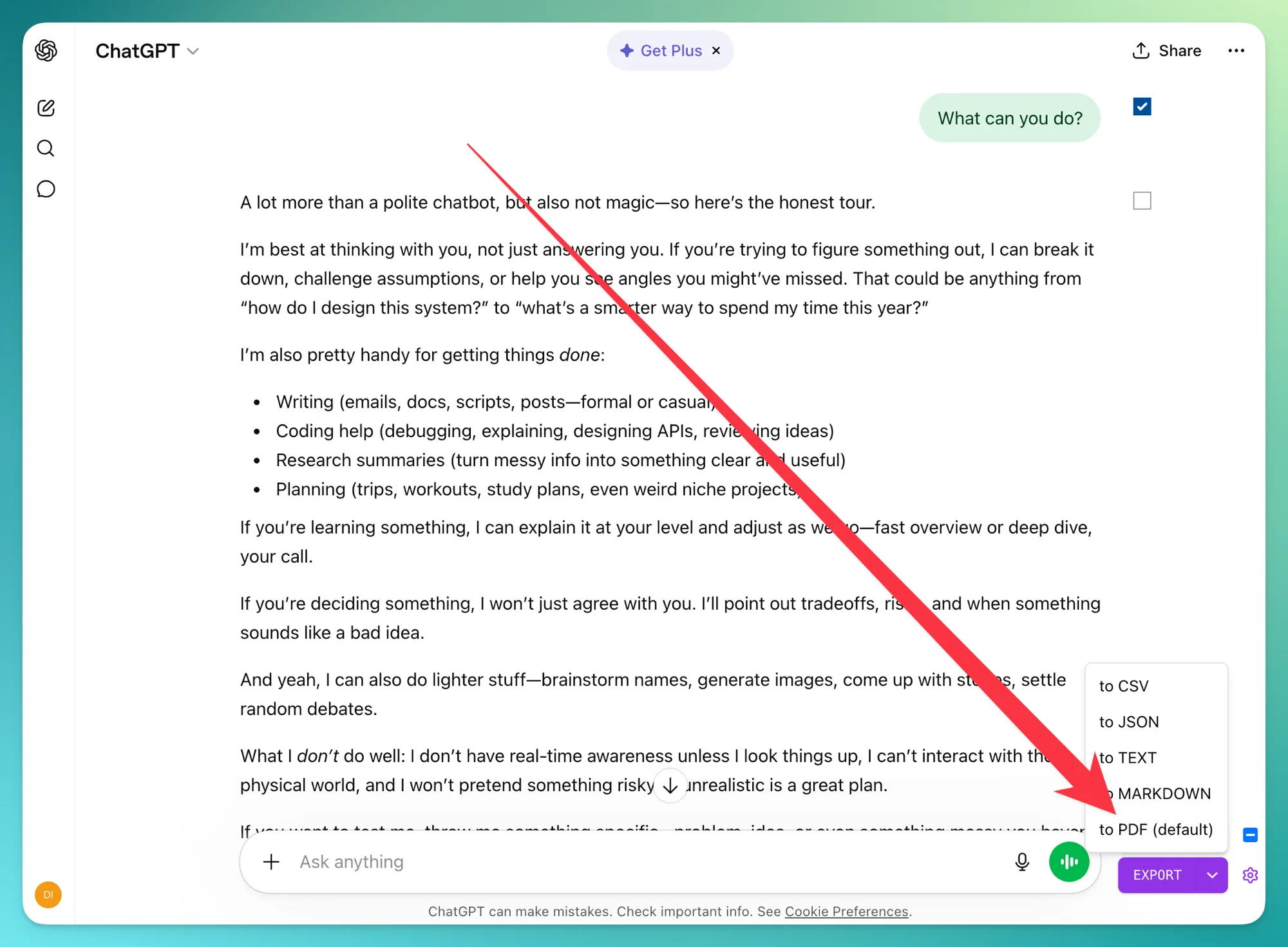
Click the dropdown arrow next to EXPORT and choose to PDF. Your choice becomes the default export format for next time.
-
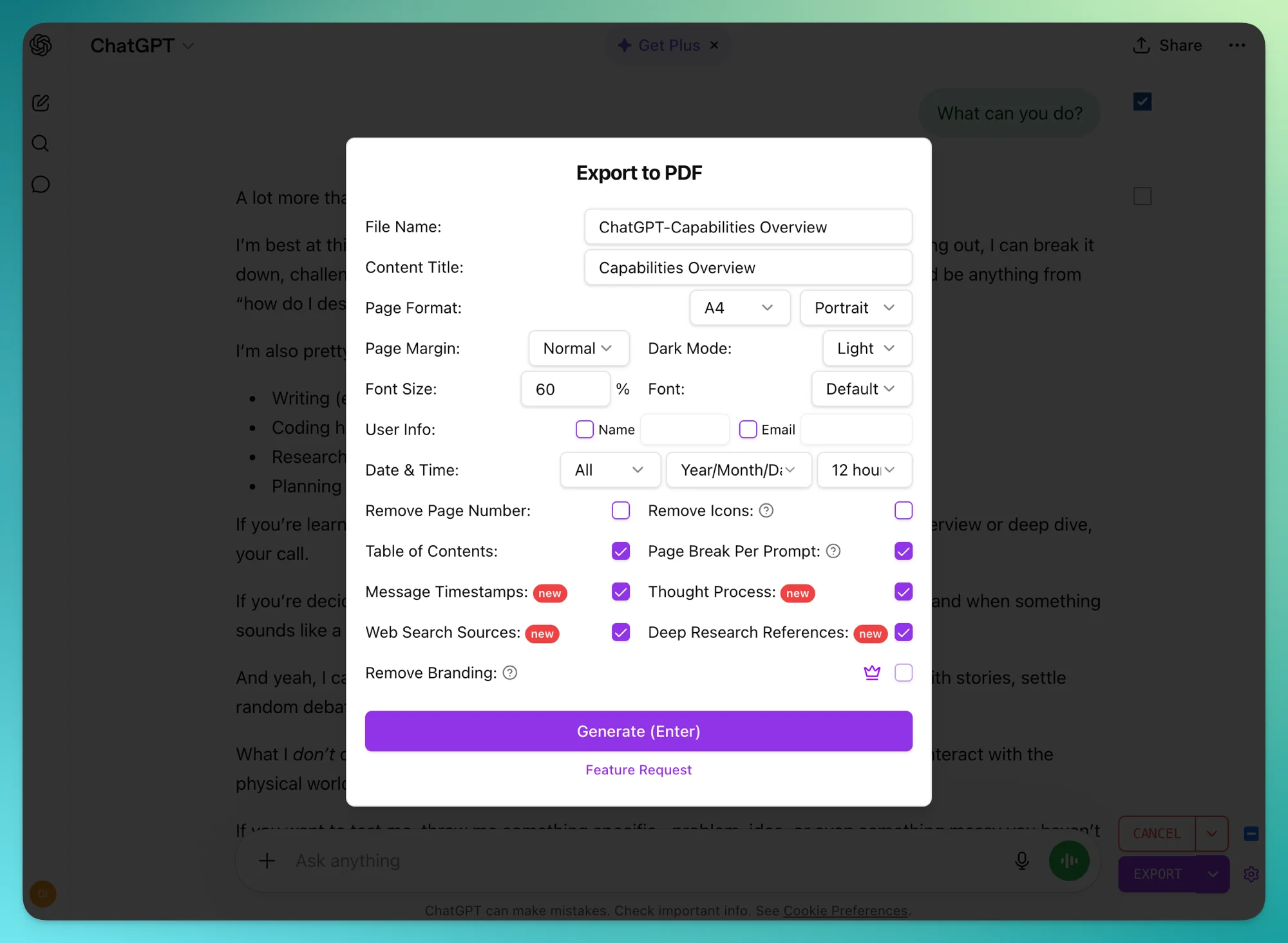
Customize your PDF (optional — sensible defaults if you skip it):
- Page layout — 8 standard sizes (A4, Letter, Legal, A3, A0–A2, Tabloid), portrait or landscape, three margin presets
- Font — default sans-serif, serif, or monospace; size adjustable from 20% to 200%
- Theme — light or dark (dark theme is a PDF-only feature)
- Auto table of contents generated from your conversation’s headings
- Page breaks between each prompt/response for a cleaner reading flow
- Page numbers and per-message timestamps (toggle on/off)
- User info — include your name and email, auto-pulled from your ChatGPT account
- Date and time format — MDY / DMY / YMD, 12-hour or 24-hour
- Special content toggles — include ChatGPT’s Thought Process, Web Search sources, and Deep Research citations
-
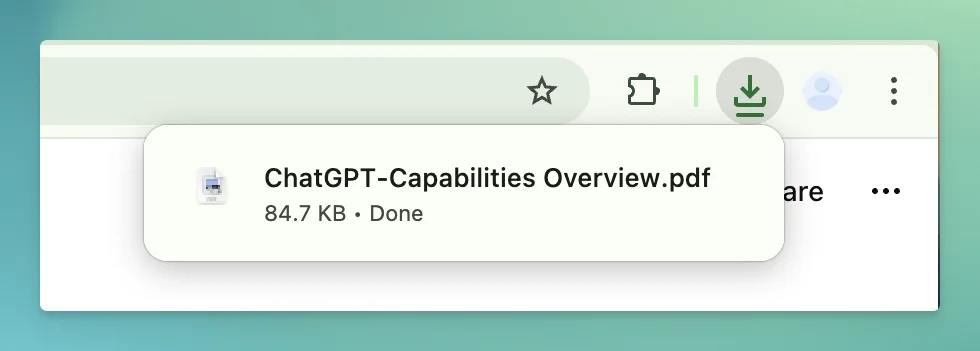
Click Generate. The PDF lands in your Downloads folder within a few seconds.
What actually gets preserved
Formatting preservation is where most tools stumble. Here’s what survives in the extension’s PDF output:
- Code blocks with full syntax highlighting — the same theme you see inside ChatGPT
- LaTeX math rendered through KaTeX — integrals, summations, matrices, all intact
- Tables with borders, alignment, and cell formatting
- Canvas and diagram outputs from ChatGPT’s drawing features
- Images, including AI-generated ones, embedded directly in the PDF
- Markdown — headings, lists, bold/italic, block quotes
- Links remain clickable inside the PDF
- Deep Research reports with citations rendered as footnotes (title + source URL)
- Web search sources — the full list of URLs ChatGPT consulted, preserved as references
- Thought Process — ChatGPT’s reasoning steps and search queries, shown as block quotes
Pros and cons
Pros
- Clean output, no browser UI clutter
- Selective export: one-click All / Questions only / Answers only, or tick individual messages by hand
- Five formats supported: PDF, Markdown, Word, JSON, CSV
- PDF-only extras: auto TOC, dark theme, per-message page breaks, embedded images, Deep Research citations
- Works with group chats (
/gg/paths) with sensible defaults applied automatically
Cons
- Chromium-based browser required (Chrome, Edge, Brave, Arc, etc.)
- Mobile Chrome doesn’t support extensions (see the Mobile section below)
Method 2 — Browser Print to PDF (No Install)
When to use it
Use browser print when you need a PDF right now, can’t install anything (locked-down work laptop), or want to keep the entire process fully local. Nothing leaves your machine — your browser renders the page and saves it.
Step-by-step
-
Open the conversation in ChatGPT.
-
Press
Cmd + P(macOS) orCtrl + P(Windows/Linux). A Print dialog appears.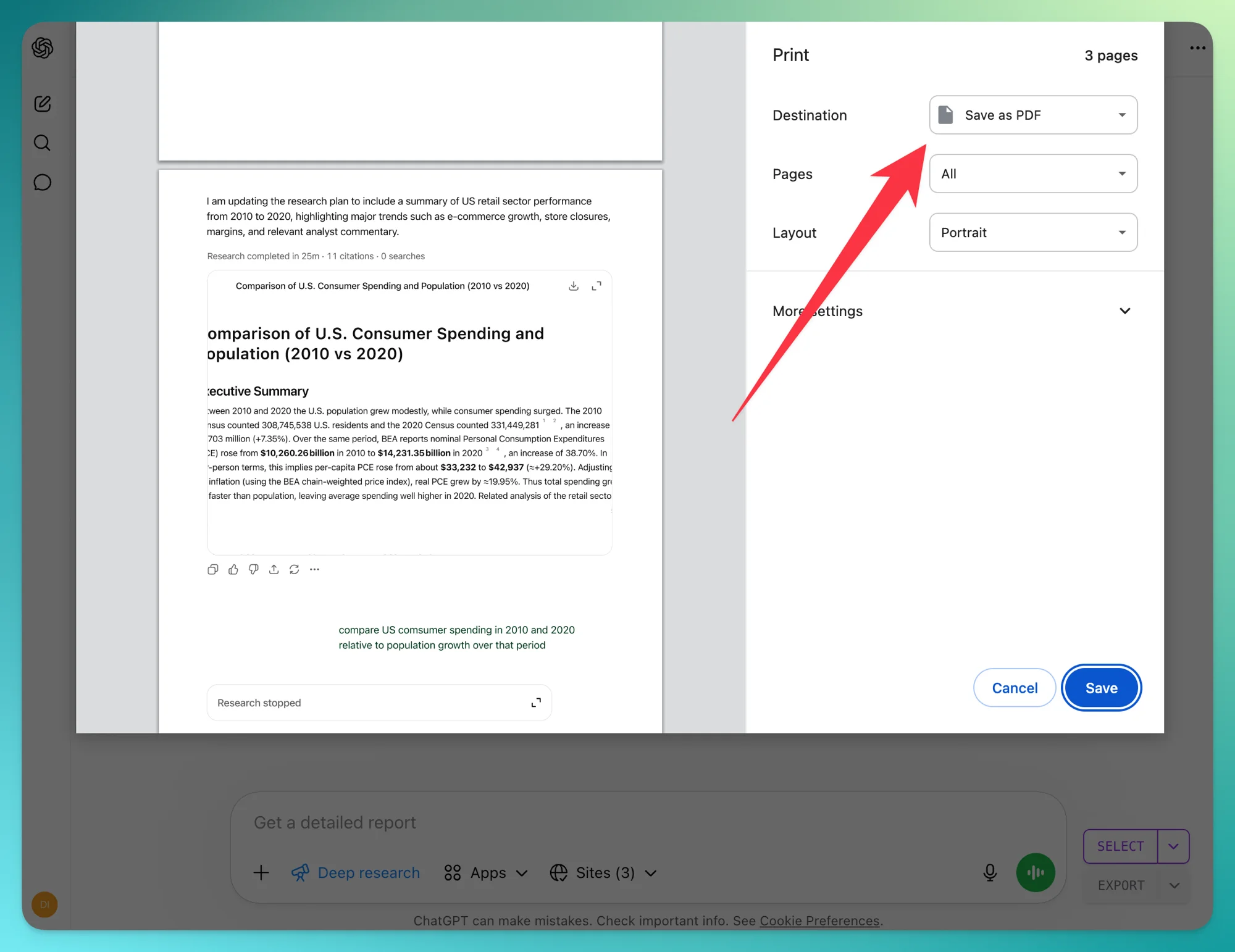
-
Change the destination to Save as PDF.
-
Adjust layout. We recommend:
- Margins: Minimum (reduces wasted space)
- Scale: 75–85% (fits more content per page)
- Background graphics: On (preserves code block backgrounds)
-
Click Save and pick a filename + location.
What breaks in print mode
The root problem is simple: browser print captures whatever is visible on the page, nothing more. If a piece of content is collapsed, scrolled out of view, or lives in a side panel, it doesn’t make it in. That produces four distinct categories of failure.
1. Unwanted page UI leaks into your PDF
You end up with ChatGPT’s own interface baked into the document:
- The top navigation header
- The left conversation sidebar (you can collapse it before printing, but it’s on you to remember)
- The action button row (copy, thumbs up/down, regenerate) under every assistant reply
- The input box, sometimes repeating on every page
2. Collapsed or scrollable content gets truncated
Many long elements live inside max-height or expandable containers on the ChatGPT UI — browser print only captures what’s currently rendered on screen:
- Long code blocks capped at a fixed height and scrolled inside a small window — print grabs just the visible slice
- Long assistant replies in group chats hidden behind a “Show more” button — if you didn’t expand them first, they won’t be in the PDF
- Deep Research reports (introduced in 2026) that open in a separate reader view — print on the main thread captures a link, not the actual report content
3. Critical reference data is silently dropped
ChatGPT’s most valuable metadata lives outside the main message flow, so print doesn’t pick it up:
- Web search sources — the URLs ChatGPT consulted during live search
- Deep Research citations — the footnote-level references in long-form reports
- Thought Process — the model’s reasoning steps and intermediate search queries
4. None of the document polish
Print mode has no concept of a “chat document” — it’s just a snapshot of a webpage. There’s no:
- Clickable table of contents
- Per-message page break (each turn starting on a fresh page)
- Per-message timestamps
- Document title, author, or conversation-created / modified / exported dates
- Custom filename — expect something generic like
chatgpt.com.pdf
Bottom line: browser print is fine for a short, text-only conversation you just want on paper. For anything with code, research, or that you plan to share, it’s the wrong tool.
Pros and cons
Pros
- Zero install, works in every browser
- Fully local — nothing is sent anywhere
- Free and instant
Cons
- Messy formatting, especially for code and math
- Includes browser UI elements you probably don’t want
- No selective export — it’s the whole page or nothing
- Filename defaults to the chat title, no customization
Which Method Should You Use?
| Criteria | ChatGPT Exporter | Browser Print |
|---|---|---|
| Speed | Under 60 seconds | 30–45 seconds |
| Formatting quality | Clean, professional | Cluttered, uneven |
| Code blocks | Preserved with colors | Often broken |
| LaTeX / math | Rendered via KaTeX | Frequently falls back to text |
| Tables | Preserved cleanly | Usually preserved |
| Customization | Headers, TOC, fonts, themes | Margins and scale only |
| Selective export | Yes — pick messages | No |
| Multiple formats | PDF, Markdown, Word, JSON, CSV | PDF only |
| Privacy | Local processing | Fully local |
| Browser required | Chromium-based | Any |
| Best for | Regular users, professionals | Quick one-offs, locked-down devices |
If you save ChatGPT chats more than once a month, the extension pays for itself in cleanup time on the first use. If this is a one-off, browser print is fine — just know what you’re trading off.
Troubleshooting ChatGPT PDF Download Issues
These are the five problems we see most often in support requests. Each has a fix.
1. Code blocks lose syntax highlighting
Cause: Browser print mode uses the screen CSS, which can drop <code> colors at print time.
Fix: Use ChatGPT Exporter — syntax highlighting is preserved by default, with the same theme you see inside ChatGPT.
2. LaTeX or math formulas look broken
Cause: Browser print captures KaTeX output as images, or sometimes as raw LaTeX strings. Fix: Use ChatGPT Exporter — math is rendered correctly in the PDF by default, no setting needed.
3. Long conversations split awkwardly
Cause: Browser print places page breaks mid-message, slicing code blocks and tables. Fix: The extension inserts a page break between each prompt/response turn by default, so each turn starts on a fresh page. Prefer a more compact PDF? Turn Page break per prompt off in the settings panel.
4. Images and diagrams are missing
Cause: Print mode sometimes skips lazy-loaded images. Fix: Scroll the entire conversation to force image loading before you print. Or use the extension, which captures images correctly in the PDF.
5. The PDF is blank or mostly empty
Cause: Usually a browser extension conflict (ad blockers hiding elements) or a conversation that hasn’t finished loading. Fix: Disable other extensions temporarily, refresh the page, scroll to the bottom of the chat, then try again. If it persists with ChatGPT Exporter specifically, click the Feedback button inside the extension, email us at [email protected], or use the support link on our Chrome Web Store listing.
How to Save ChatGPT as PDF on Mobile
ChatGPT has a mobile app, but neither iOS Safari nor mobile Chrome supports browser extensions — that’s a platform limitation, not something any tool can fix. Two workarounds:
Android — Kiwi Browser
Kiwi is a Chromium-based Android browser that does support Chrome extensions.
- Install Kiwi from the Google Play Store
- In Kiwi, visit the Chrome Web Store and install ChatGPT Exporter
- Open chat.openai.com inside Kiwi
- Export works identically to desktop
iOS — Orion Browser
Orion (by Kagi) supports Chrome and Firefox extensions on iOS and iPadOS.
- Install Orion from the App Store
- Enable extensions in Orion settings
- Add ChatGPT Exporter from the Chrome Web Store
Workaround — Desktop export, mobile access
If installing an alternative browser isn’t practical, export on your desktop, then sync the PDF via iCloud Drive, Google Drive, or Dropbox. This is how we handle it on work devices where installing Kiwi or Orion isn’t an option.
FAQ
Q: How do I save a ChatGPT conversation as PDF?
A: The fastest way is to install the ChatGPT Exporter extension, open your conversation, click Export, and choose PDF. If you can’t install extensions, press Cmd/Ctrl + P and select Save as PDF — the formatting will be less clean, but it works.
Q: Can I download only part of a ChatGPT conversation?
A: Yes, with the ChatGPT Exporter extension. Click the Select button next to the input box, pick the specific messages you want (or toggle “prompts only” / “replies only”), then export. Browser print can’t do selective export.
Q: Will my code and formulas be preserved?
A: With ChatGPT Exporter, yes. Code blocks keep syntax highlighting, LaTeX math is re-rendered through KaTeX, and tables stay intact. Browser print preserves most code, but highlighting and page breaks are unreliable.
Q: Does ChatGPT have a built-in PDF export?
A: Not for individual conversations. OpenAI’s Data Export downloads your entire history as HTML inside a ZIP file — you still have to open the HTML and convert to PDF manually. For a single chat, you need the browser print method or an extension.
Q: Can I export ChatGPT conversations from mobile?
A: Indirectly. The official ChatGPT mobile app has no export option. To export on mobile, use Kiwi Browser (Android) or Orion Browser (iOS), both of which support Chrome extensions — then install ChatGPT Exporter inside them.
Q: How do I download all my ChatGPT history?
A: For a full archive, use OpenAI’s Data Export (Settings → Data Controls → Export Data) — you’ll get a ZIP with every chat as HTML. To bulk-export specific chats as PDFs, see our bulk export guide.
Q: Why is my ChatGPT PDF blank?
A: Usually one of three causes: (1) the conversation didn’t finish loading — scroll to the bottom first; (2) an ad blocker is hiding chat elements — try incognito mode; (3) browser print is capturing an empty state. If it’s blank with the extension, refresh ChatGPT and try again.
Beyond PDF — Other Export Formats
PDF is the right format for sharing and archiving, but it’s not the only option you might want. For Notion or Obsidian workflows, see how to export ChatGPT to Markdown. For data analysis or LLM fine-tuning, see how to export ChatGPT to JSON.
Next Steps
- Install ChatGPT Exporter — lightweight, installs in seconds
- Open any ChatGPT conversation and try exporting
- Compare the output with browser print — you’ll see the difference in 30 seconds
If you run into anything this guide didn’t cover, use the Feedback button inside the extension, email [email protected], or use the support link on our Chrome Web Store listing. For feature details, visit the homepage.