How to Bulk Export ChatGPT Conversations: Every Method Compared (2026)
Key Takeaways
- ChatGPT’s built-in data export (Settings → Data Controls → Export Data) is the only official way to bulk-export all conversations at once — but it delivers raw JSON that’s hard to read and offers no format choices.
- ChatGPT Exporter lets you export conversations in 5 professional formats (PDF, Markdown, JSON, TXT, CSV) with full formatting, selective export, and AI-specific content like Deep Research citations. Its multi-tab batch workflow (Cmd+click conversations → export each tab in two clicks) makes exporting 10–30 conversations fast and painless.
- The recommended workflow: Use OpenAI’s bulk export for a full backup, then use ChatGPT Exporter’s multi-tab workflow for the conversations you actually need in a usable format.
1. Introduction
Bulk exporting ChatGPT conversations means downloading multiple — or all — conversations from your ChatGPT account at once, rather than saving them one by one. The fastest method is ChatGPT’s built-in data export (Settings → Data Controls → Export Data), which emails you a ZIP file containing every conversation as JSON. For formatted exports in PDF, Markdown, or CSV, use a browser extension like ChatGPT Exporter with its multi-tab batch workflow.
If you’ve been using ChatGPT for months (or years), you probably have hundreds of conversations scattered across your account — coding sessions, research deep dives, brainstorming threads, and project notes.
The question isn’t whether you should export them. It’s how.
Maybe you want a full backup before deleting old chats. Maybe you’re migrating to a new tool. Or maybe you just want your important conversations saved in a format you can actually use — not locked inside ChatGPT’s interface forever.
In this guide, we’ll compare every method available in 2026 for bulk exporting ChatGPT conversations, from OpenAI’s official data export to browser extensions and Python scripts. We’ll be honest about what each method can and can’t do, so you can pick the right approach for your situation.
2. Why Bulk Export Your ChatGPT Conversations?
Before diving into methods, here are the most common reasons people want to bulk export:
- Data backup — ChatGPT conversations are stored on OpenAI’s servers. If your account is suspended, or if OpenAI changes their data retention policy, you could lose everything.
- Knowledge management — Your ChatGPT history is a personal knowledge base. Exporting it lets you search, organize, and connect conversations in tools like Obsidian, Notion, or your own file system.
- Privacy and data ownership — Many users want a local copy of their data they fully control.
- Migration — Moving between AI tools or building a personal archive across ChatGPT, Claude, Gemini, and others.
- Compliance — Some organizations require employees to archive all AI interactions for audit purposes.
- AI training data — Researchers and developers may want to analyze or repurpose their conversation history.
3. Method 1: ChatGPT’s Built-in Data Export (The Official Bulk Method)
OpenAI provides a built-in data export feature that downloads all your conversations at once. This is the only official “bulk export” option.
How It Works
- Open ChatGPT and go to Settings (see OpenAI’s official data export guide for details).
- Navigate to Data Controls.
- Click Export Data.
- Confirm via the email OpenAI sends you.
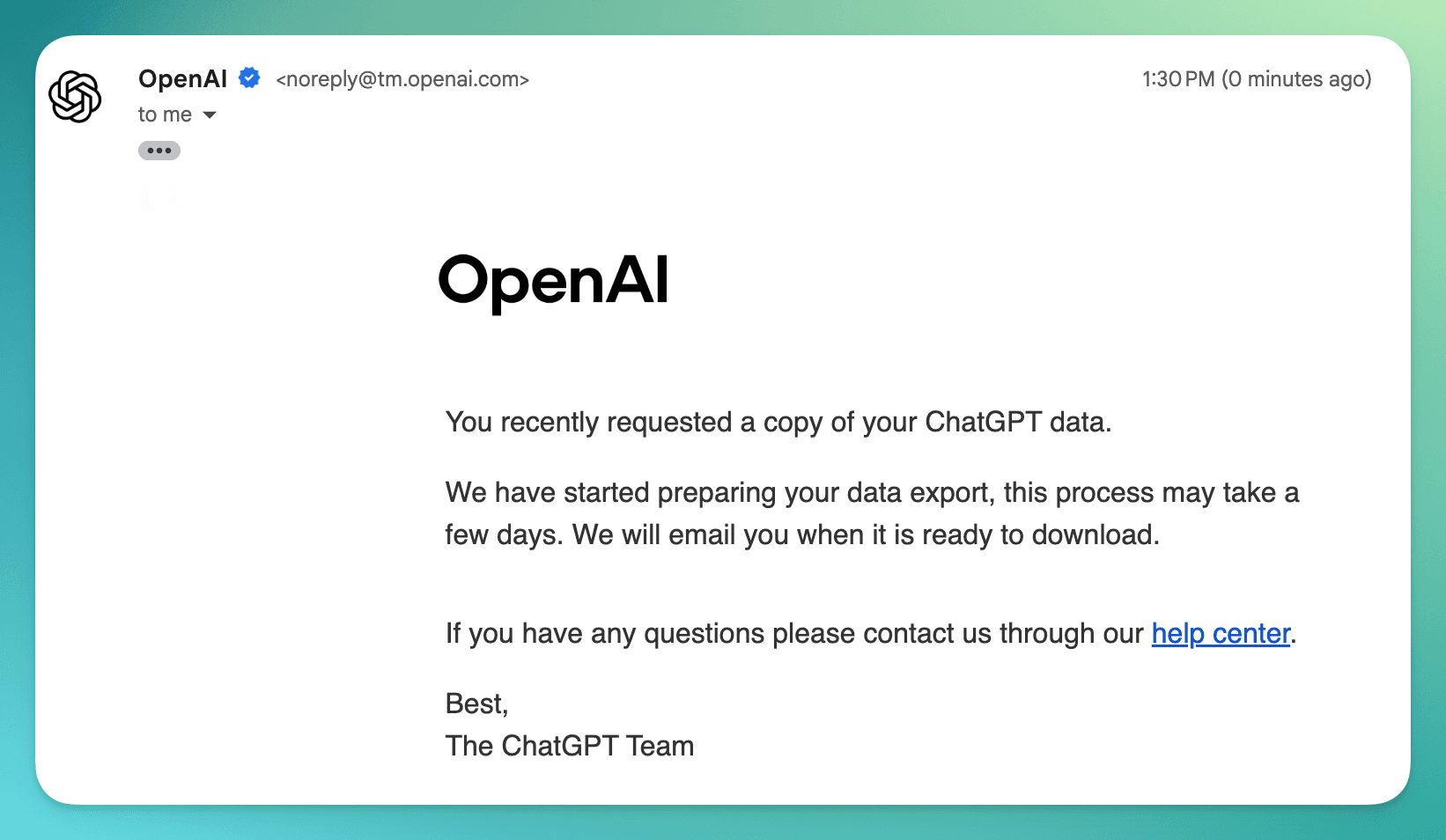
- Wait for a second email with a download link. OpenAI’s confirmation email says “this process may take a few days” — in practice, it can arrive in 20–30 minutes for small accounts or take several days for accounts with a large conversation history.
- Download the ZIP file and unzip it.
What You Get
The ZIP file contains:
conversations.json— A single JSON file with your complete conversation history, including all messages, timestamps, model info, and metadata. For a typical account with 100+ conversations, this file can be 10–50 MB in size.chat.html— An HTML file you can open in a browser to view your conversations with basic formatting.
Strengths
| Advantage | Details |
|---|---|
| Official and reliable | Provided by OpenAI — no third-party tools required |
| Truly bulk | Exports every conversation in your account at once |
| Complete metadata | Includes timestamps, model info, and conversation structure |
| No install needed | Works from ChatGPT’s settings page |
Limitations
| Limitation | Details |
|---|---|
| All-or-nothing | You cannot select specific conversations or date ranges — it exports everything |
| Raw JSON only | The conversations.json file is not human-readable without additional processing |
| No format choices | No PDF, Markdown, TXT, or CSV options — just JSON and a basic HTML viewer |
| Slow delivery | OpenAI says it “may take a few days” — can range from 20 minutes to several days depending on account size |
| Missing content | Temporary conversations, deleted chats, and DALL-E images are excluded |
| No AI-specific content | Deep Research citations, thought processes (o1/o3), and web search sources are not preserved in the export |
| One-time snapshot | There’s no incremental export — each time you export, you get everything again |
Verdict
ChatGPT’s built-in data export is the only official way to download all conversations at once — but the raw JSON output requires additional tools to be usable. It’s the right choice for a full backup of your entire conversation history. But if you need readable, formatted files — or want to export specific conversations in a usable format — you’ll need additional tools.
4. Method 2: ChatGPT Exporter (Best for High-Quality Individual Exports)
ChatGPT Exporter is a Chrome extension with 200,000+ users that exports ChatGPT conversations one at a time — but in 5 professional formats with full formatting preservation.
Full disclosure: This is our product. We’ll be upfront about what it does and doesn’t do.
What It Does Well
5 export formats:
| Format | Best For |
|---|---|
| Sharing, printing, archiving — with code highlighting, LaTeX, images, table of contents, 8 page sizes (A0–Tabloid), and 3 font families | |
| Markdown | Knowledge bases (Obsidian, Notion, Logseq), documentation, feeding to other AIs |
| JSON | Data analysis, programmatic processing, AI training datasets |
| TXT | Universal compatibility, full-text search, lightweight archiving |
| CSV | Spreadsheet analysis (Excel, Google Sheets), database import |
Selective export — Choose all messages, prompts only, responses only, or hand-pick individual messages with checkboxes. This is critical for extracting just the valuable parts of long conversations.
AI-specific content preservation:
- Deep Research reports — Full report with citations converted to proper footnotes (Markdown) or rendered references (PDF).
- Thought processes (o1/o3 models) — Exported as blockquotes, clearly separated from the final response.
- Web search sources — All cited URLs collected and listed.
- Canvas artifacts — Code blocks with language tags and titles preserved.
Rich metadata — Conversation title, timestamps (created/updated/exported), user info, and a link back to the original conversation. Each field is individually toggleable.
The Multi-Tab Batch Workflow
ChatGPT Exporter doesn’t have a one-click “export all” button — but it supports a fast multi-tab workflow that gets surprisingly close to bulk export, with far better output quality:
Setup (one time):
- Open ChatGPT Exporter’s Settings page.
- Set your preferred download folder so all exports go to one place.
- Turn off “Ask where to save each file” in your browser’s download settings (Chrome:
chrome://settings/downloads), so files save automatically without a dialog. - Choose your export settings — format (Markdown, JSON, CSV, etc.), message selection (all, prompts only, responses only), metadata options, and any format-specific customization.
Batch export:
- Go to the ChatGPT sidebar or a ChatGPT Project page where your conversations are listed.
- Hold Cmd (Mac) or Ctrl (Windows/Linux) and click each conversation you want to export. Each one opens in a new tab.
- Switch to the first tab (Cmd+1), click Select → Export — the file saves instantly. Then close the tab (Cmd+W).
- Repeat for each tab. Since ChatGPT Exporter remembers your last export settings (format, message selection, and all customization options), each conversation takes just two clicks to export.
Why this works well:
- The “selection” step isn’t extra work. Any bulk export method requires you to choose which conversations to export. Here, you’re selecting them by Cmd+clicking in the sidebar — the same action you’d take in any bulk tool.
- Two clicks per conversation. With settings pre-configured, you’re just clicking Select → Export on each tab. No dialogs, no configuration, no waiting.
- Full customization per format. Unlike raw bulk export tools, you get ChatGPT Exporter’s complete formatting engine — PDF layout options, Markdown with proper footnotes, JSON with structured metadata, customizable timestamps and date formats — on every single file.
- Selective export. You can choose “Answers only” once, and every subsequent tab exports just the AI responses. This level of filtering is simply not available in bulk export tools that dump everything.
For 20 conversations, the entire multi-tab workflow takes approximately 3–5 minutes and produces properly formatted, individually named files — something no “export all” button can match in quality.
5. Method 3: OpenAI Export + Python Conversion (Bulk + Formatting)
If you want both bulk and readable formats, you can combine OpenAI’s official export with open-source conversion tools:
Step-by-Step
- Export your data from ChatGPT (Method 1 above).
- Unzip and locate
conversations.json. - Use a Python tool like convoviz to convert the JSON into readable files:
# Option A: convoviz (Markdown output)
pip install convoviz
convoviz --input conversations.json --output ./markdown-chats/

# Option B: Custom script with Python's json module
python convert_chats.py conversations.json --format markdown --output ./exported/
Each conversation becomes a separate file (.md, .txt, etc.) that you can open in any editor.
Strengths
- Bulk conversion of your entire history into readable files.
- Good for one-time migration or full archive.
- Open-source tools available on GitHub.
Limitations
- Requires Python and command-line knowledge.
- Output formatting quality varies by tool — code blocks, tables, and LaTeX may not convert cleanly.
- No Deep Research citations, thought processes, or web search sources.
- No selective export — every conversation is converted.
- Manual process that you need to repeat for new conversations.
Method Comparison
| Feature | OpenAI Built-in Export | ChatGPT Exporter (Multi-Tab) | OpenAI + Python Conversion |
|---|---|---|---|
| Export scope | All conversations at once | 10–30 conversations per session | All conversations at once |
| Output formats | JSON only | PDF, Markdown, JSON, TXT, CSV | Markdown, TXT (depends on tool) |
| Selective export | No | Yes (per-message filtering) | No |
| Deep Research citations | No | Yes (footnotes with URLs) | No |
| Setup required | None | Chrome extension + one-time settings | Python + CLI knowledge |
| Time to export 20 chats | Minutes to days (server-side) | ~3–5 minutes (manual) | 20+ min wait + 1 min conversion |
| Technical skill needed | None | None | Medium (Python) |
6. The Recommended Workflow: Combining Methods
The best bulk export strategy is a two-layer approach: OpenAI’s built-in export for full account backups, and a formatting tool like ChatGPT Exporter for the conversations you actually need in a usable format. Here’s how to set it up:
Step 1: Full Backup with OpenAI Export
Go to Settings → Data Controls → Export Data in ChatGPT. This gives you a complete archive of every conversation as raw JSON — your safety net. Store the ZIP file in cloud storage or an external drive.
When to do this: Once a month, or before any major account changes (deleting old chats, changing plans, etc.).
Step 2: Batch Export Important Conversations with ChatGPT Exporter
For conversations you actually want to use — not just archive — use ChatGPT Exporter’s multi-tab batch workflow:
- Pre-configure your export settings (format, message selection, download folder).
- Cmd+click (Mac) or Ctrl+click (Windows/Linux) the conversations you need in ChatGPT’s sidebar.
- Export each tab in two clicks (Select → Export → Cmd+W to close).
Choose the right format for each use case:
- Research reports → Export as Markdown with Deep Research citations for your knowledge base.
- Client deliverables → Export as PDF with custom layout, table of contents, and professional formatting.
- Data analysis → Export as JSON or CSV for programmatic processing.
When to do this: As you finish important conversations, or during a weekly review of your ChatGPT history.
Step 3: Optional — Bulk Convert the Backup
If you need your entire history in a readable format, use the Python conversion approach (Method 3) on your OpenAI export. This works well for building a searchable archive in Obsidian or a local folder.
7. What Format Should You Export To?
| Your Goal | Best Format | Best Method |
|---|---|---|
| Full account backup (safety net) | JSON (raw) | OpenAI built-in export |
| Knowledge base (Obsidian, Notion) | Markdown | ChatGPT Exporter |
| Sharing with colleagues | ChatGPT Exporter | |
| Data analysis / scripting | JSON or CSV | ChatGPT Exporter |
| Spreadsheet import | CSV | ChatGPT Exporter |
| Universal compatibility | TXT | ChatGPT Exporter |
| Bulk archive in readable format | Markdown | OpenAI export + Python conversion |
8. Frequently Asked Questions
Q1: Can I bulk export all ChatGPT conversations at once?
Yes, but only through ChatGPT’s built-in data export (Settings → Data Controls → Export Data). This exports everything as raw JSON. For formatted exports (PDF, Markdown, etc.), you currently need to export conversations individually using a tool like ChatGPT Exporter.
Q2: How long does ChatGPT’s data export take?
OpenAI’s confirmation email states the process “may take a few days.” In practice, smaller accounts may receive the download link in 20–30 minutes, but accounts with a large conversation history can take several days. You’ll receive an email when it’s ready.
Q3: Will I lose my conversations if I don’t export them?
Your conversations are stored on OpenAI’s servers as long as your account is active. However, deleted conversations cannot be recovered, and there’s no guarantee about long-term data retention. Regular backups are recommended.
Q4: Can ChatGPT Exporter bulk export all my conversations?
There’s no single “export all” button, but the multi-tab batch workflow makes it fast: Cmd+click conversations in the sidebar to open them in tabs, then export each tab in two clicks. ChatGPT Exporter remembers your settings between tabs, so you don’t need to reconfigure anything. For a full account backup, use ChatGPT’s built-in export instead.
Q5: Is ChatGPT’s exported JSON file readable?
The conversations.json file is technically readable but not practical for human consumption — it’s a deeply nested JSON structure designed for machines. You’ll need a conversion tool (like convoviz) or a JSON viewer to make sense of it. The included chat.html file provides a basic browser-viewable version.
Q6: Are Deep Research reports included in the bulk export?
ChatGPT’s built-in export includes the text content of Deep Research reports, but the structured citations and footnotes are not preserved in a usable format. ChatGPT Exporter preserves Deep Research reports with proper footnotes, source URLs, and snippets.
Q7: How do I export ChatGPT conversations to Obsidian in bulk?
The most practical approach: (1) Use ChatGPT’s built-in export to get conversations.json, (2) Convert it to Markdown files using a tool like convoviz, (3) Move the .md files to your Obsidian vault. For individual important conversations, use ChatGPT Exporter’s Markdown export for much higher formatting quality.
Q8: Can I export conversations from the ChatGPT mobile app?
ChatGPT’s built-in data export works regardless of which device you use — it’s account-level. For individual exports using ChatGPT Exporter, you need a desktop browser (Chrome, Edge, or Brave) since it’s a browser extension.
Q9: Is there a way to automatically export new conversations?
No method currently supports automatic or scheduled exports. You need to manually trigger either ChatGPT’s built-in export or use ChatGPT Exporter after each conversation.
Q10: How often should I back up my ChatGPT conversations?
For most users, a monthly backup via ChatGPT’s built-in export is sufficient. If you use ChatGPT heavily for work or research, consider a weekly backup and real-time exports of critical conversations using ChatGPT Exporter.
9. Conclusion
There’s no single perfect solution for bulk exporting ChatGPT conversations in 2026. Each method has clear trade-offs:
- OpenAI’s built-in export gives you everything at once, but in raw, unformatted JSON.
- ChatGPT Exporter gives you professional-quality formatted exports with a fast multi-tab batch workflow — Cmd+click to open conversations, two clicks to export each one.
- Python conversion tools bridge the gap for technical users who want bulk and readable.
The most effective approach for most people is to combine methods: use OpenAI’s export for periodic full backups, and ChatGPT Exporter’s batch workflow for the conversations that matter most — the ones you’ll actually revisit, share, or build on.
Get started:
- Full backup: ChatGPT Settings → Data Controls → Export Data
- Quality exports: Install ChatGPT Exporter (Chrome Web Store)